Know you will miss an upcoming class?
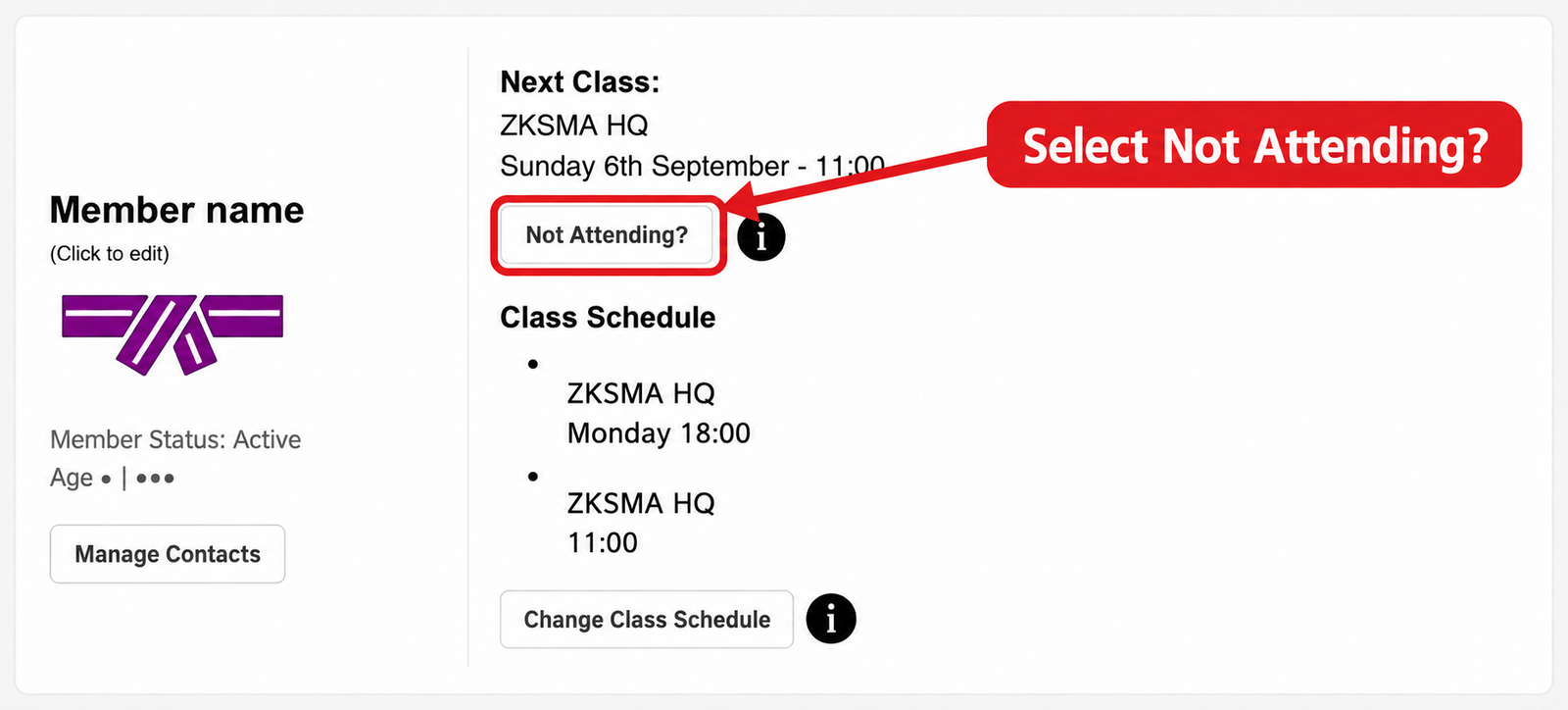
Find the member on the Member Dashboard. Under Next Class, select Not Attending? to arrange an available temporary alternative.
Arrange it before the class you will missTemporary changes apply to upcoming classes only. They cannot be made retrospectively, and missed sessions cannot be saved up for a later date.
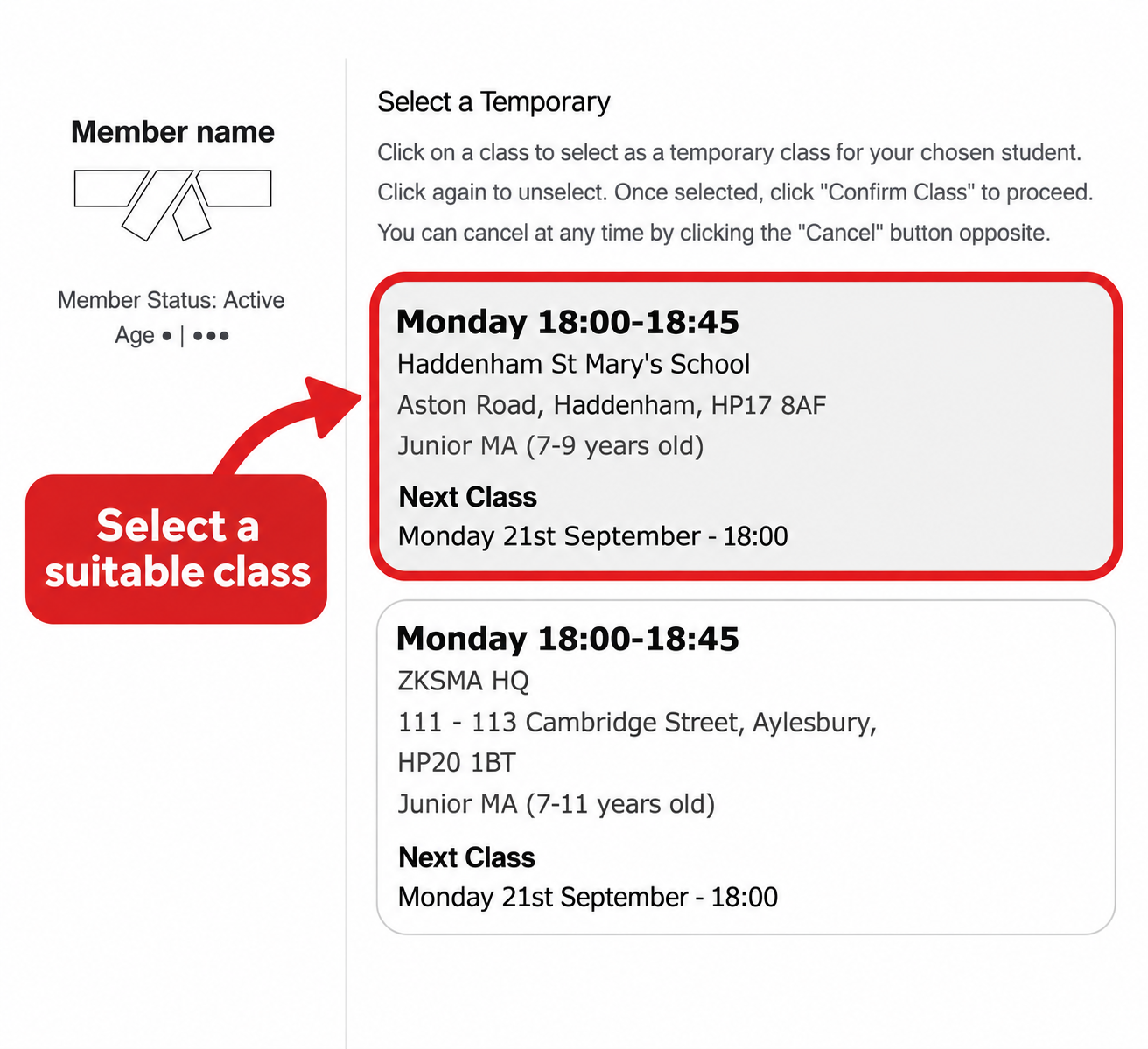
Then choose and confirm your temporary class
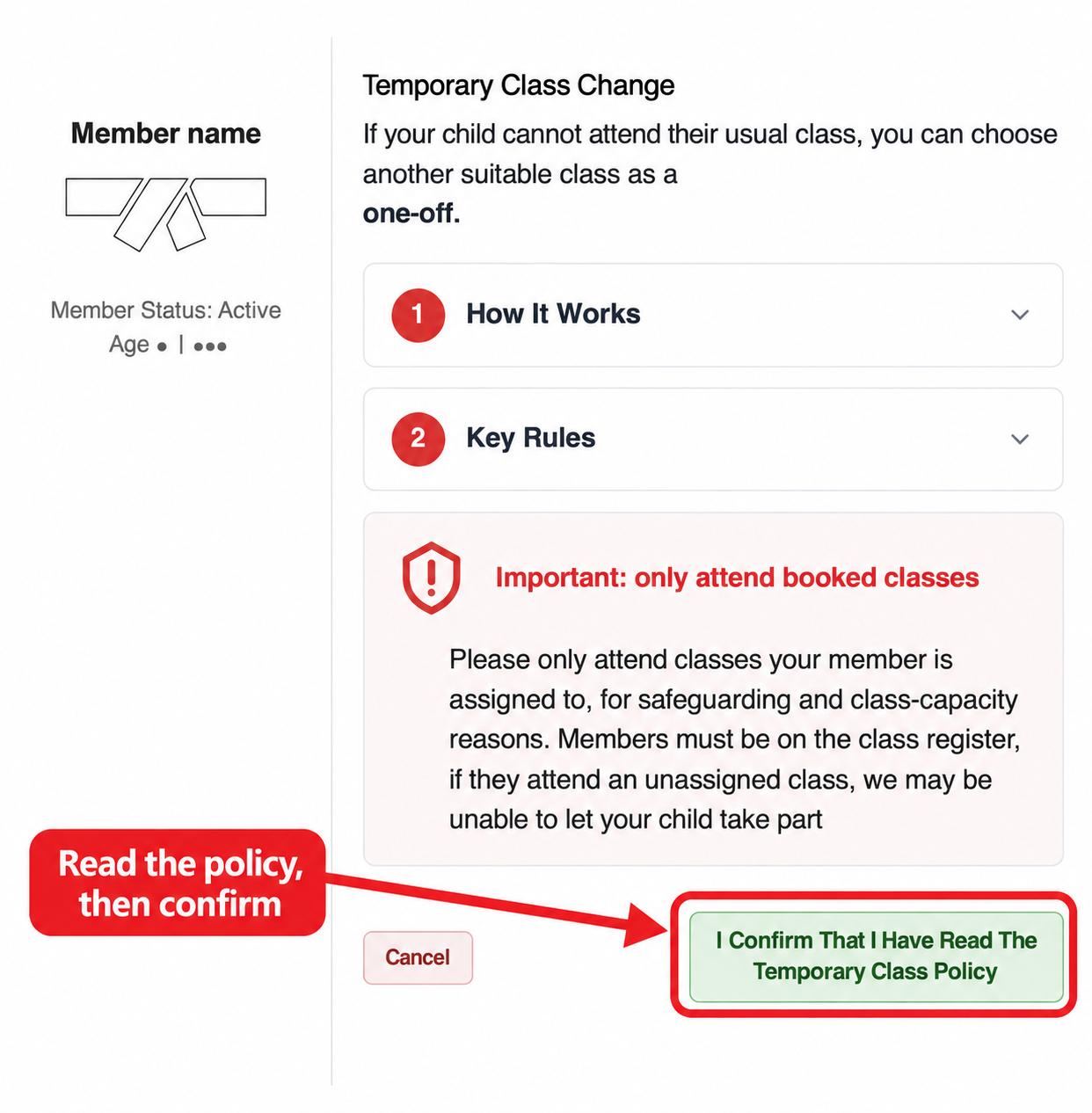
Confirming that you have read the policy does not book a class. Continue to the available classes, choose a suitable session and complete the booking. Only attend once your temporary booking is confirmed, so your member is on the class register.
Your regular class stays in place
A temporary change does not replace your regular weekly schedule. Your normal class remains on Class Schedule, so you do not need to change it back afterwards.
For example, if your normal class is Sunday and the system offers a suitable Saturday session for a one-off change, confirm that temporary booking and continue with your normal Sunday schedule afterwards.
When can this feature be used?
- For an occasional upcoming absence, arranged before the normal class takes place.
- Only for suitable alternatives with available spaces in the six-day window shown.
- Not retrospectively after a class has been missed.
- Not to bank missed classes or carry them beyond the permitted period.
- Not as a way to change your schedule every week.
Missed classes are not refunded, and an alternative place is not guaranteed. Adaptive classes are specialist sessions for children with additional needs and are not general temporary alternatives.
Already missed the class, or no suitable alternative?
The temporary-change feature cannot recover a past session or create a place outside the permitted window. Continue with your regular schedule. If illness or injury means a longer absence, see injury and medical guidance.
Used Change Class Schedule by mistake?
That changes your regular classes and may release your previous place. Check the current schedule straight away. If the original class is available, you can restore it through Change Class Schedule. If it is unavailable or you are unsure what happened, message ZKS; the previous place cannot be guaranteed.
If your normal day no longer suits you, use the regular class-change guide.